

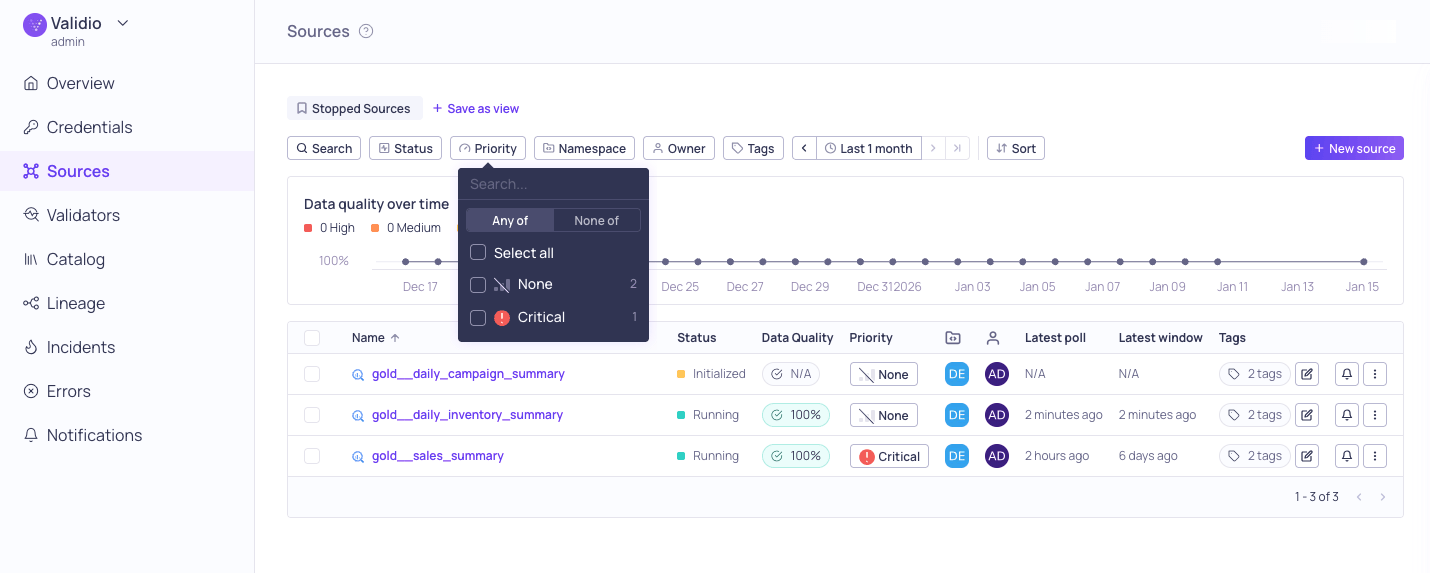
Search and filtering options on the Sources page
Searching
The search box matches keywords against fields that depend on the page. On the Sources and Validators pages, search covers the name, type, and description. On the Catalog assets page, it covers the asset name, the database (or catalog) and schema, and the asset’s descriptions. See the Search column in Filters available by page for every page. Searching is not case sensitive, and the list updates as you type. When you enter more than one keyword, the results include only resources that match all of the keywords, ranked by relevance. To match either of two keywords, typeOR between them (for example, orders OR customers). To exclude a keyword, put - in front of it (for example, orders -test).
Not every page has a search box — for example, the Incidents page is filtered rather than searched. See Filters available by page.
Filtering
Filter options are context-specific and adapt to the page you are viewing. For example:- On the Sources page, the Status filter tracks operational status, such as whether a source is Running, Idle, or Backfilling.
- On the Incidents page, the Status filter reflects the stages of your troubleshooting workflow: Triage, Investigating, Resolved, and False positive.
Filter operators
Filters support both inclusive and exclusive logic using Any of, All of, or None of operators. For example, to view all Sources except those currently Idle, you can use either of the following configurations:- None of: Select Idle to exclude it from your view.
- Any of: Select all of the other states (Running, Backfilling, and so on).
Filters available by page
The filters, search, and saved-view support differ by page. The following table summarizes what each list page offers.
If a filter has no values to select on the current page, it does not appear. Some pages document their filters in more detail — see Incidents, Catalog assets, and Validators.
The Lifecycle, Review state, Changes requested, Submitted by, and Created by filters appear on the Sources and Validators lists when approval workflows are enabled for a namespace in view. Changes requested shows drafts that a reviewer sent back, and Submitted by and Created by narrow the list to drafts submitted or created by specific users. The Sources, Validators, Filters, Windows, and Segmentations lists also offer built-in Unsubmitted and In review views for changes that are waiting to be submitted or reviewed, and the Validators list offers an Archived view.
Sorting
Use the Sort menu to order the table by a field such as Name, Created date, or Last updated time. The available sort fields vary by page. Selecting a field a second time toggles between ascending and descending order. For faster navigation, you can click the Name column header directly in the table to sort alphabetically or reverse-alphabetically.Clearing filters
To reset the view, click Clear. This option becomes available once you have applied any search, filter, or sort customization.Saving views
A saved view captures your current search, filters, sort, and time range so you can return to a setup instantly or share it with your team. For example, you can create a view titled “My Incidents” that filters for critical incidents assigned to you within the last 24 hours, then use it in your daily triage workflow. To share a specific state without saving a view, copy a deep link instead. Saved views are available on the Sources, Validators, Incidents, Catalog assets, and Lineage pages. The Glossary, Classifications, Credentials, and Channels pages do not currently support saved views.Create a saved view
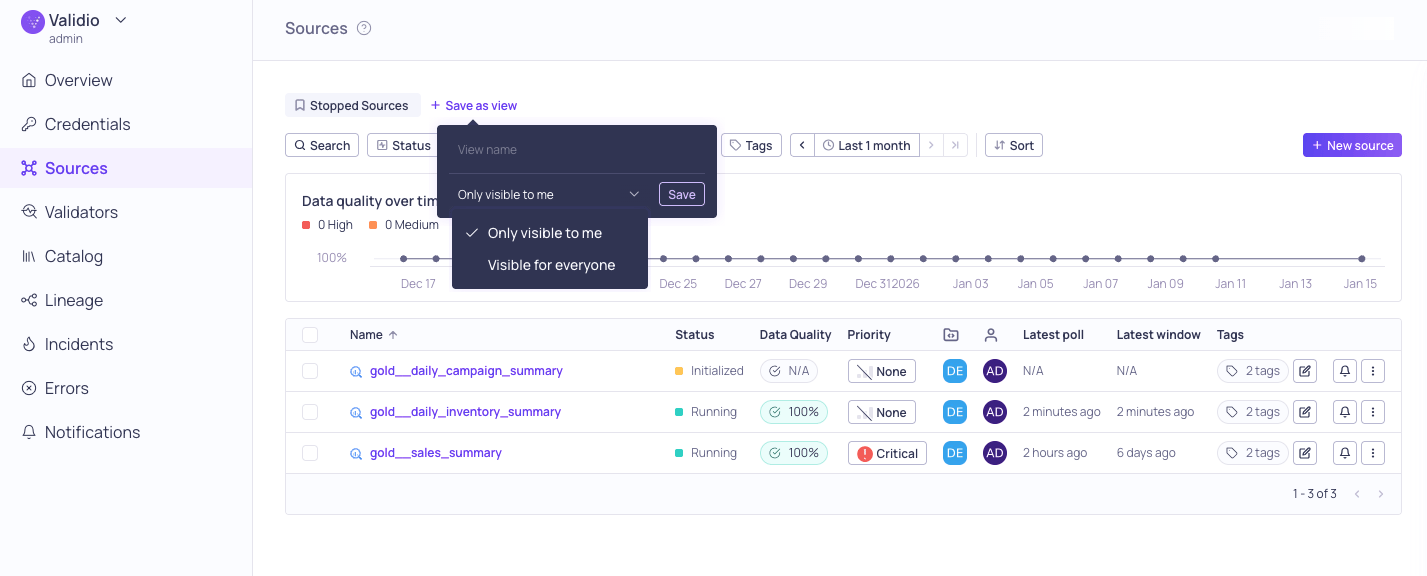
Configuration options for saving a view
- Apply your search, sorting, or filters to the page.
- Click + Save as view.
- Name: Enter a unique and descriptive name.
- Visibility: Keep your view private (Only visible to me) or share it with everyone (Visible to everyone).
- Click Save.
Update a saved view
If you apply more filters to a saved view, the Save as view button becomes Update view. To update the current view,- Click Update view.
- (Optional) Edit the Name and Visibility of the view.
- Click Update to save your changes.
Delete a saved view
To remove a saved view,- Hover over or select the view name.
- Click the trash can icon to delete the view.